
You’ve built a product, whether it’s a weekend side quest or your next unicorn startup, and now it needs a documentation site.
If you’re wondering where to start, you’ve come to the right place.
In this tutorial, I’ll use the demo docs site I set up for Vale, an open source prose linter, as the example. You can see the finished site at linda-s-thally-demo-for-vale.thally.app and its source code at github.com/Linda-Ikechukwu/linda-s-thally-demo-for-vale. By the end, you’ll have your own docs site live in under 10 minutes, and you’ll know how to add your own navigation and pages to it. I’ll also share the problems I ran into, so you don’t lose time on them the way I did.
What is Thally, and why use it?
Thally is a documentation platform where you write your documentation pages as MDX files in a GitHub repository, and Thally turns them into a searchable docs site.
When I was researching which documentation platform to use, I settled on Thally because it’s built around keeping your docs in sync with everywhere else you describe your product, like your marketing website, your help center, and your internal docs, as long as their content lives in a GitHub repository. Other documentation platforms, like Mintlify, GitBook, and ReadMe, don’t offer that.
Especially in this era of coding agents and AI, teams are shipping faster than anyone can keep track of. The most agile teams used to ship a release every other Friday. Now, features and fixes ship by the hour, and it’s easy for the docs to fall behind without anyone noticing. And when your docs, website, and help center fall out of sync, things can get ugly fast.
Say your coding agent ships an update on Monday that moves the export button into a new Reports menu. Two days later, your docs still tell customers to find it on the dashboard, and your website still shows the old screen. A customer follows the docs, can’t find the button, and opens a support ticket. Your support team answers from the same outdated docs, and now the customer doesn’t trust any of them.
Thally Track is built for exactly this. It reads each change merged into your code, works out which docs or pages it affects in your connected repositories, and opens a pull request with the update for you to review. Nothing publishes until a person approves it.
You can start for free. The free plan gives you one docs site with unlimited pages and readers, and you don’t need a credit card to sign up. Track, custom domains, and AI answers come with the paid Thally Cloud plan, but you don’t need any of them to follow this tutorial.
Thally also assumes that AI is part of how people read and write docs today. Every site it publishes is readable by AI tools, through an llms.txt file, Markdown versions of each page, and a Model Context Protocol (MCP) server that assistants can search. And because your docs are plain files in Git, a coding agent like Claude Code or Cursor can edit them as easily as you can.
Prerequisites
You need:
- A GitHub account. Thally stores your site’s content in a GitHub repository.
- Node.js 22.14 or later, to run the site on your computer. Thally also supports Node.js 20.19 and later.
- Git and a code editor, like VS Code.
- Basic comfort with Markdown and the terminal. You don’t need to know React or Next.js, even though Thally is built on Next.js.
Step 1: Create your site
Go to app.thally.io and sign in with GitHub. Thally then asks you to set up three things: a name and description for your site, where your docs should live, and Thally’s access to GitHub.
Name and describe your site. Give your site a name, and describe what the product does and who the docs are for. The description has a 240-character limit, so keep it to one or two sentences. For the Vale site, I described what Vale is and who it helps.
Choose where your docs live. Thally offers three options:
- Create a new docs repository: Thally creates a new GitHub repository with a starter site in it. Choose this if you’re starting from scratch, as I did.
- Import from a docs URL: Thally brings in an existing docs site from its URL.
- Use an existing repository: Thally adds its files to a repository you already have.
Give Thally access to GitHub. Thally installs a GitHub App so it can create your repository and publish your site when you push changes. GitHub asks whether to give the app access to All repositories or Only select repositories. If you chose to create a new docs repository, Thally’s quickstart tells you to choose All repositories, because the app needs that access to set up the repository it creates. If your organization only allows access to selected repositories, start from an existing Thally-compatible repository instead, and give the app access to only that repository. I cover why this matters in Obstacles I hit, near the end of this tutorial.
When you finish, Thally creates the repository and publishes the starter site.
Your repository now has a first commit, “docs: initialize Thally site,” and the site is live at a thally.app address based on your site’s name, like linda-s-thally-demo-for-vale.thally.app.
Step 2: Run the site on your computer
To edit your docs and see the result before you publish, run the site locally. Clone the repository Thally created, then install its dependencies and start the development server:
git clone https://github.com/YOUR_USERNAME/YOUR_REPOSITORY.git
cd YOUR_REPOSITORY
npm install
npm run dev
Open http://localhost:3040 in your browser. You’ll see the starter site, with demo pages for components, customization, an API reference, and a changelog.
The starter always runs on port 3040. If another app is already using that port, run npm run dev -- --port 3041 instead, and open http://localhost:3041.
The files you’ll work with are:
| File or folder | What it holds |
|---|---|
src/content/ | Your pages, one .mdx file each |
docs.json | Your navigation: tabs, groups, and the order of pages |
src/data/site.ts | Your site’s name, description, and header and footer links |
Step 3: Set up your navigation and site details
As the table in step 2 shows, your site’s navigation lives in docs.json, at the root of your repository. It controls the tabs across the top of your site, the groups in the sidebar, and which pages appear in each group, in order.
When Thally creates your site, the starter includes 10 demo pages. This is how its docs.json arranges them:
"navbar": {
  "primary": {
    "label": "Get started",
    "href": "/quickstart"
  }
},
"tabs": [
  {
    "tab": "Get started",
    "groups": [
      {
        "group": "Get started",
        "pages": ["introduction", "quickstart"]
      },
      {
        "group": "Design your docs",
        "pages": ["components", "customization"]
      }
    ]
  },
  {
    "tab": "Guides",
    "groups": [
      {
        "group": "Work with Thally",
        "pages": ["guides/create-a-site", "guides/work-with-the-cli", "guides/connect-ai-tools"]
      }
    ]
  },
  {
    "tab": "API Reference",
    "groups": [
      {
        "group": "Overview",
        "pages": ["api/introduction", "api/authentication"]
      }
    ],
    "api": { "source": "openapi.yaml" }
  },
  {
    "tab": "Changelog",
    "href": "/changelog"
  }
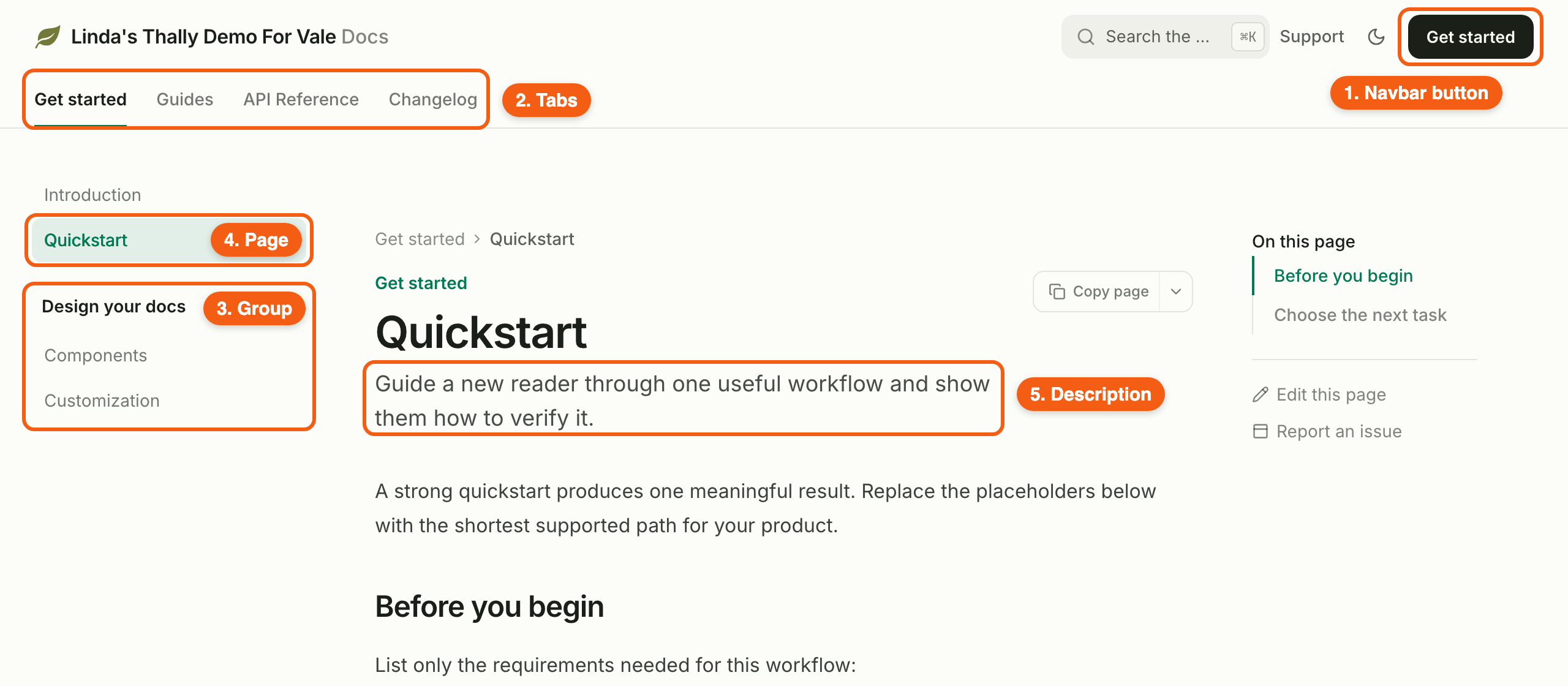
]- The navbar button is the button in the top-right corner of every page. In the starter, it says “Get started” and links to the quickstart. Point it at the page you most want readers to start with.
- A tab is a section of your site, shown across the top of every page. The starter has four tabs: Get started, Guides, API Reference, and Changelog.
- A group is a heading in the sidebar, under a tab. Each group lists its pages in the order they appear.
- A page is the path to its
.mdxfile insidesrc/content/, without the.mdxextension. For example,guides/create-a-sitepoints tosrc/content/guides/create-a-site.mdx.
Figure 1 shows how these appear on the starter site, numbered to match the preceding list. I’ll come back to element 5, the page description, in step 4.
To add a page, create its .mdx file in src/content/, then add its path to a group in docs.json.
To remove a page, delete its file and remove its path from docs.json. If you remove a page’s file but leave its path, the sidebar still shows the page, and readers who click it get a “page not found” error.
For my Vale documentation site, I only needed three pages, so I deleted the other default pages and replaced the four tabs with one. I ended up with this:
"navbar": {
  "primary": {
    "label": "Run your first lint",
    "href": "/quickstart"
  }
},
"tabs": [
  {
    "tab": "Docs",
    "groups": [
      {
        "group": "Get started",
        "pages": ["introduction", "quickstart"]
      },
      {
        "group": "Guides",
        "pages": ["guides/add-your-style-guide"]
      }
    ]
  }
]
After you add or delete pages, open src/data/site.ts and update your site’s name, description, and links to match. The links list sets the links in your site’s footer:
links: [
  { label: "Get started", href: "/quickstart" },
  { label: "Support", href: "https://github.com/YOUR_USERNAME/YOUR_REPOSITORY/issues/new" },
  { label: "GitHub", href: "https://github.com/YOUR_USERNAME/YOUR_REPOSITORY" },
],
If you deleted a demo page, remove any link to it from this list. The starter links to /changelog here, so if you deleted the changelog page, delete that link too.
Step 4: Write your pages
Start by drafting the content for each page yourself, whether that’s an introduction, a quickstart, a tutorial, or a how-to guide. Write it in whatever format is easiest for you, even a plain Markdown file or a notes doc.
Each page on your site is an .mdx file in src/content/. MDX is Markdown that can also hold components, which Thally uses to display content in more useful ways than plain text.
These are some common components you’d find handy:
| Component | What it’s for |
|---|---|
<Steps> and <Step> | Numbered steps in a procedure, like a quickstart |
<Tabs> and <Tab> | The same instruction for different readers, like install commands for macOS, Windows, and Linux |
<CardGroup> and <Card> | Links to other pages, like the cards at the end of an introduction |
<Tip> and <Note> | A short aside the reader shouldn’t miss |
Refer to Thally’s components reference for the full list of components you or your agent can use.
The good news is, you don’t have to type these component tags yourself in a text editor.
Give your finished draft to a coding agent, like Claude Code, Cursor, or Codex, and it can turn the draft into a Thally page with the right components. To help your agent work with Thally, connect Thally’s MCP server first.
Assuming you use Claude Code like me, run this from your repository:
claude mcp add thally -- npx -y @thallylabs/mcpThally’s guide to AI coding agents shows the setup for Cursor, Codex, and other agents.
Then ask your agent to turn your draft into a page. For example:
Turn my draft in drafts/quickstart.md into a quickstart page at
src/content/quickstart.mdx, using Thally's components where they help the
reader. Don't change what the draft says. Add the page to the Get started
group in docs.json.
Review the page it creates, and check that it didn’t change what your draft says.
Every page has a title and a description. Thally shows the title as the page heading and the description as the subtitle under it, as shown in element 5 of Figure 1. Both come from the page’s frontmatter, a short block of settings between two --- lines at the top of the file:
---
title: Quickstart
description: Install Vale and run your first lint against Google's style guide.
---
So when you hand your draft to your agent, tell it what the title and description should be, or check what it chose. If a title is too long for the sidebar, add navTitle with a shorter version.
To see a new page, restart npm run dev and refresh your browser.
Step 5: Check, build, and publish
Before you publish, check your site for problems. From the root of the repository, run:
npm run checkThis runs Thally’s checker, which finds problems like broken links between pages and pages listed in docs.json that don’t exist. When everything is fine, it prints:
✅ No issues found.Then build the site, the same way Thally does when it publishes:
npm run buildIf both pass, commit your changes and push them to GitHub:
git add -A
git commit -m "Add Vale docs"
git push
Thally publishes the new version of your site when you push to your repository’s main branch. Open your site’s thally.app address to see your changes live.
Obstacles I hit
Overall, I had a great experience setting up Thally, but I also ran into a few obstacles and some awkward developer experience. None of them stopped me, but each one cost me some time, so watch out for them:
- Creating a new repository means giving Thally access to all your repositories. To create a new docs repository, Thally’s GitHub App needs access to every repository in your GitHub account. A later screen then asked me to pick repositories, which looked like a way to limit that access but wasn’t. For a personal account, that’s fine. For a company with internal repositories, it’s a lot to grant a docs tool, and your security team may say no. If that’s your situation, start from an existing Thally-compatible repository instead, and give the app access to only that one.
- Your page changes don’t show up while the server runs. When I edited an
.mdxfile withnpm run devrunning, the page didn’t update. Thally compiles the pages once, when the server starts. To see your changes, stop the server and runnpm run devagain. - The checker doesn’t check footer links. After I deleted the changelog page,
npm run checkstill reported no issues, even though the footer linked to/changelog, which no longer existed. Check thelinkslist insrc/data/site.tsyourself whenever you delete a page. - A build can pass while the checker fails. At one point,
npm run buildsucceeded whilenpm run checkreported two errors: a page listed indocs.jsonthat didn’t exist yet, and a link to it. Run both before you publish, and treat the checker as the one that matters. - Deleted demo pages leave files behind. Removing the API reference pages didn’t remove
openapi.yamlfrom the root of the repository, and the site still served it at/openapi.yaml. If you don’t document an API, delete that file too. - The site name gets “Docs” added to it. Thally adds “Docs” after your site’s name in the header. When I named the site “Vale Docs,” the header showed “Vale Docs Docs.” Leave “Docs” out of the name.
Wrapping up
You now have a Thally docs site with your own navigation and pages, running on your computer and live on the web. Every time you push a change to your repository, Thally publishes it.
The logical next step is the reason I chose Thally in the first place, which is keeping your docs in sync with your product. With Thally Track, on the paid Thally Cloud plan, you connect the repositories where your product’s code lives, and Thally opens a pull request whenever a change affects your docs. Refer to Thally’s Track guide to set it up.
For everything else you can do with your site, like adding a custom domain, changing its branding, or publishing an API reference, refer to the Thally documentation.